

Introduction
Are you grappling with computer problems or experiencing frustrating crashes? Fear not! In this comprehensive guide, we’ll take you through the basics of troubleshooting, from identifying common computer issues to serious hardware failures. Whether you’re a tech enthusiast, a business owner, or a curious user, these steps will empower you to diagnose issues efficiently.
1. Windows Memory Diagnostic
- Purpose: Validate RAM integrity.
- Procedure:
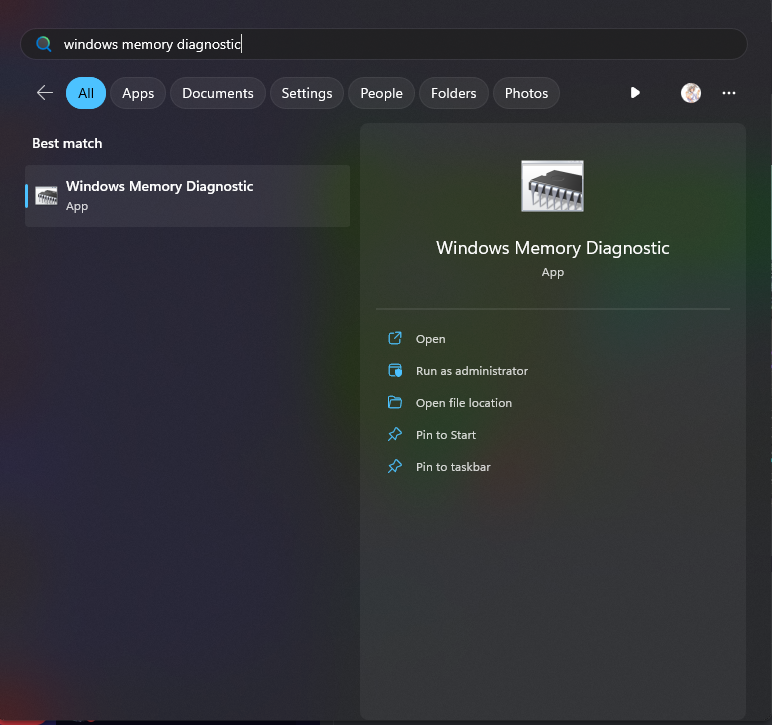
- Search for “Windows Memory Diagnostic” in your Windows search bar.
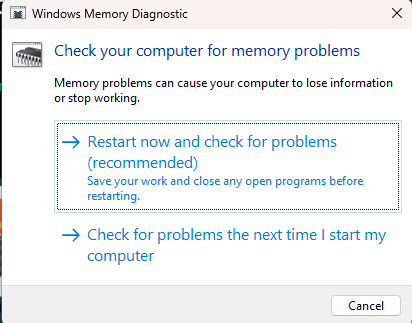
- Open it and run the test (may take up to 45 minutes).
- Results: Validates whether RAM is functioning correctly.
2. BlueScreenView
- Purpose: Analyze past blue screens (BSODs).
- Procedure:
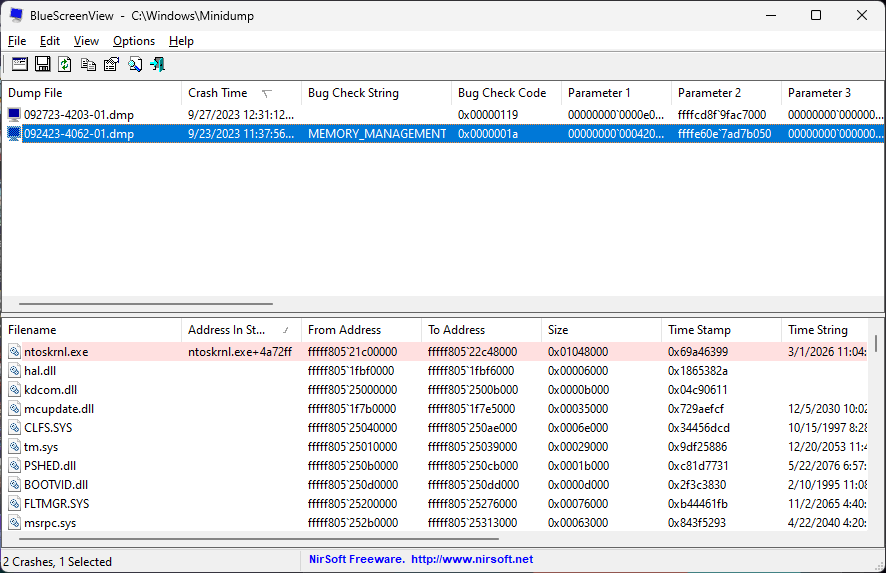
- Download BlueScreenView from NirSoft
- Use BlueScreenView to identify instabilities and potential causes of blue screens.
- Results: Helps pinpoint specific issues for further investigation.
3. Verify Windows Integrity
- Purpose: Ensure Windows files are not corrupted.
- Procedure:
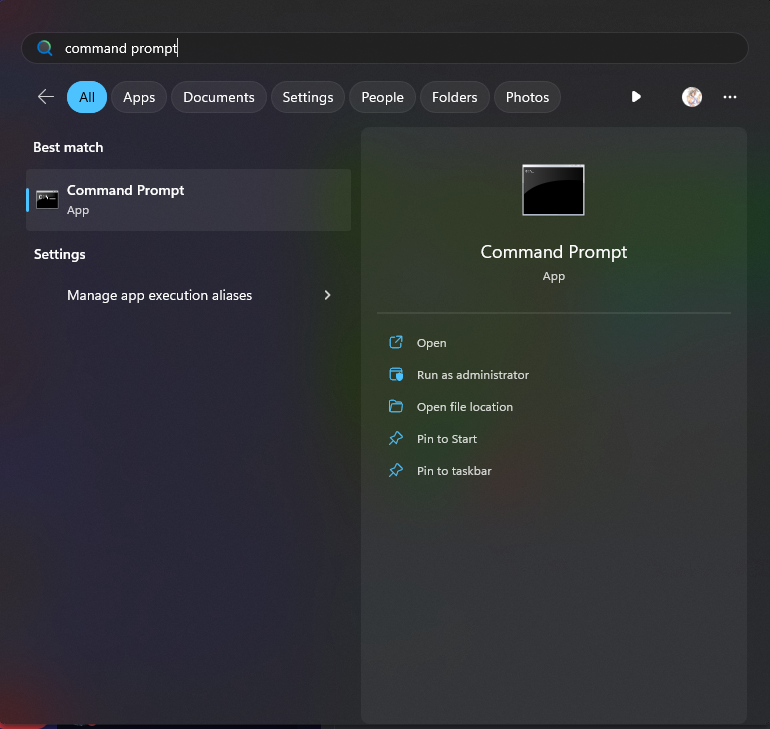
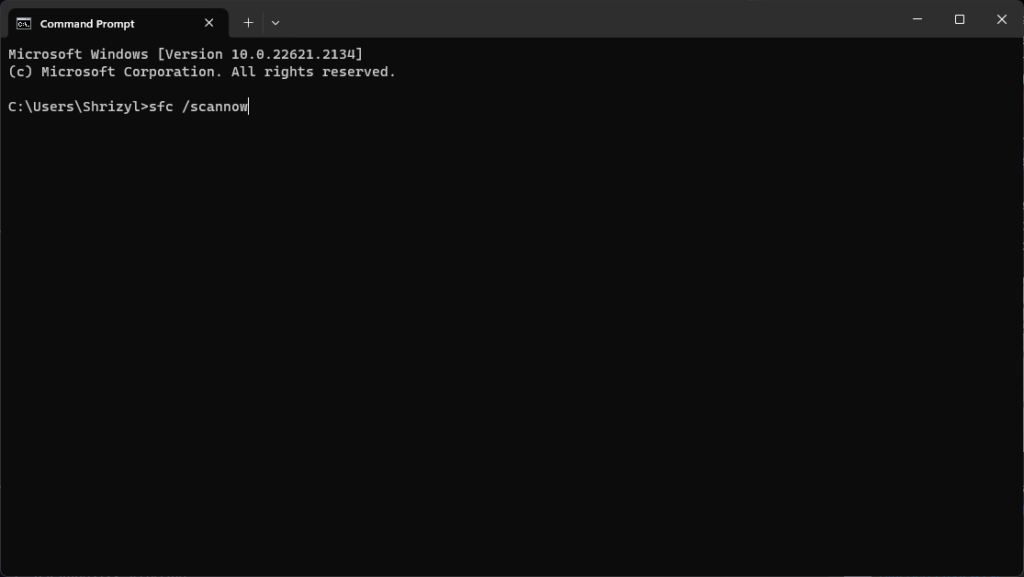
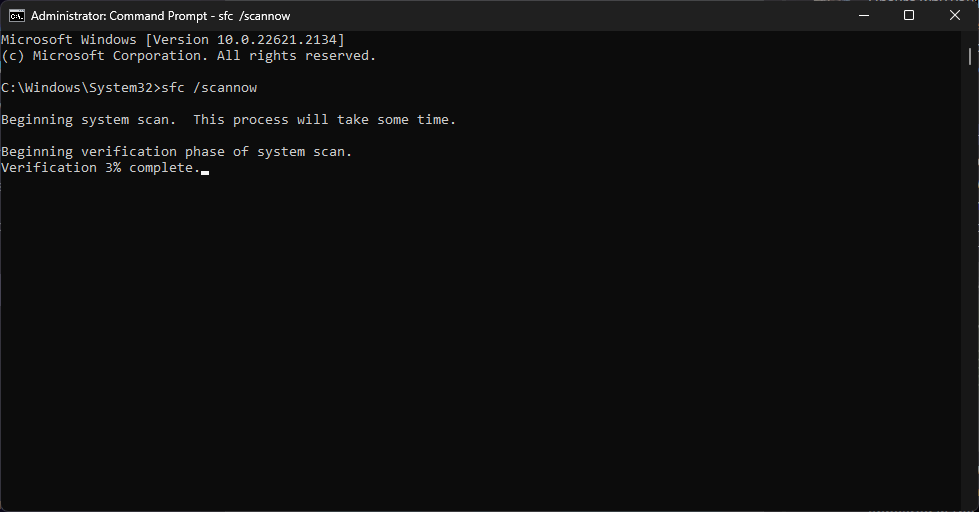
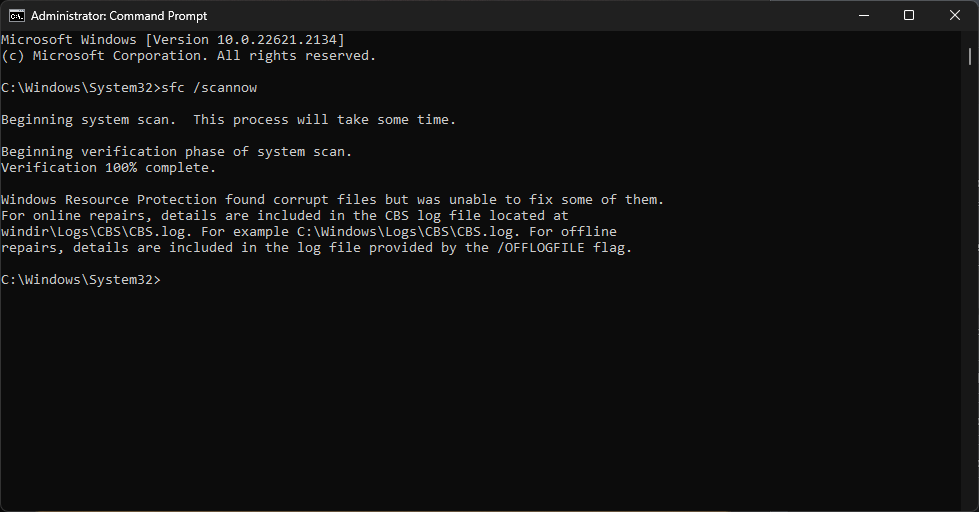
- Open Command Prompt as an administrator.
- Type:
sfc /scannow. and press enter - Results: Validates and repairs any corrupted Windows files.
4. OCCT Stability Test
- Purpose: Identify hardware issues.
- Procedure:
- Download OCCT from OCBase
- Access the Stability Test section.
- Run each test for 30 minutes (CPU, GPU 3D Standard, GPU Memory, System Memory, PSU).
- Results: Detects errors (if present) or triggers unexpected shutdowns.
5. Random Shutdowns
- Purpose: Address unexpected system shutdowns.
- Procedure:
- Check cable connections (GPU, motherboard, power supply).
- Reseat cables and GPU if issues persist.
- Test peripherals individually (faulty USB devices can cause shorts).
Remember, thorough diagnostics lead to effective solutions. Document your findings and collaborate with technical support if needed! 🖥️🔍