

As a gamer, you know that a stable internet connection is crucial for an enjoyable gaming experience. Whether you’re battling it out in Call of Duty: Modern Warfare 3 (MW3) or exploring vast virtual worlds, consistent ping and faster speeds can make all the difference. In this guide, we’ll walk you through essential steps to optimize your internet settings for gaming.
1. Baseline Ping Test with Waveform’s Bufferbloat Tool
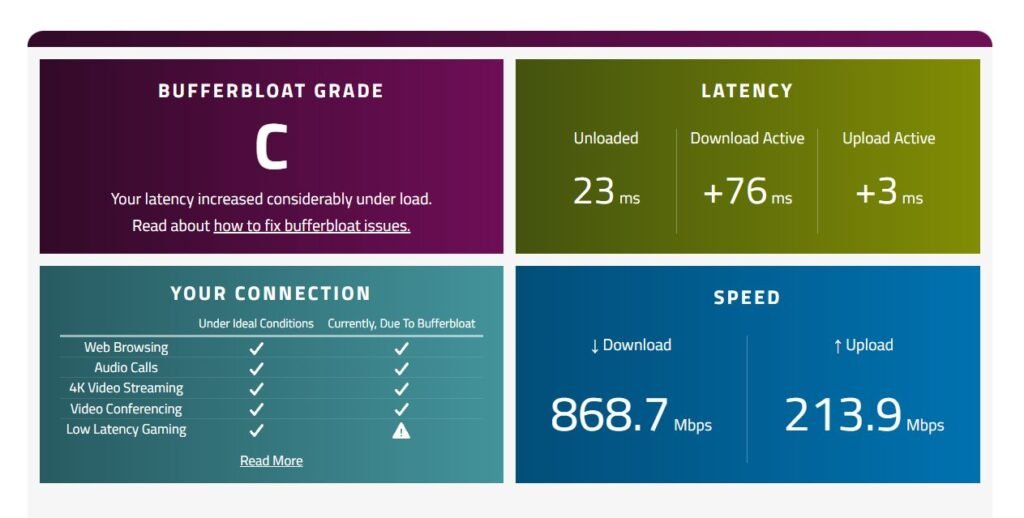
Before diving into tweaks, establish a baseline for your internet ping. Follow these steps:
- Access Waveform’s Bufferbloat Test: Visit Waveform’s Bufferbloat Test and run the test. This tool measures bufferbloat, which affects latency during online gaming.
- Save the Results: Record your baseline ping results. You’ll use this data to compare later.
2. Download Custom Configuration Files
To fine-tune your internet settings, download custom configuration files. Here’s how:
- Access the Google Drive Folder: Visit this Google Drive folder. https://drive.google.com/drive/folders/12sXbkDQaFruKfwt96seiDEqjs9qELafI
- Download the File: Retrieve the relevant file (e.g., Logan_Tweaks.spg). These files contain optimized settings for your network.
3. Use TCP Optimizer
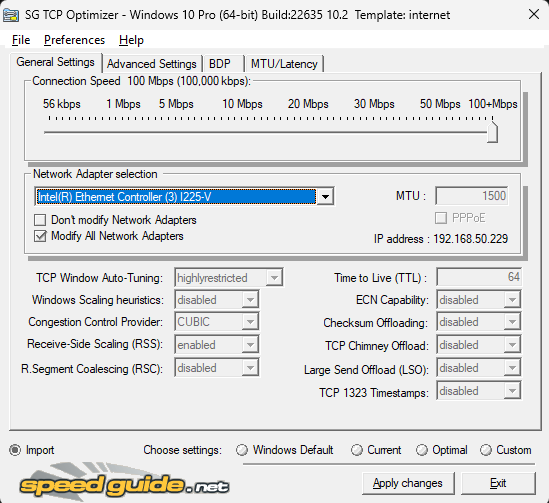
Direct download link from SpeedGuide: TCP Optimizer
TCP Optimizer is a powerful tool for tweaking your internet settings. Follow these steps:
- Run TCP Optimizer as Administrator: Launch TCP Optimizer and ensure you run it with administrative privileges.
- Import the Configuration File:
- Click on “File” at the top.
- Choose “Import.”
- Locate the downloaded Logan_Tweaks.spg file.
- Apply the changes.
- Restart Your System: After applying the tweaks, restart your computer to ensure the changes take effect.
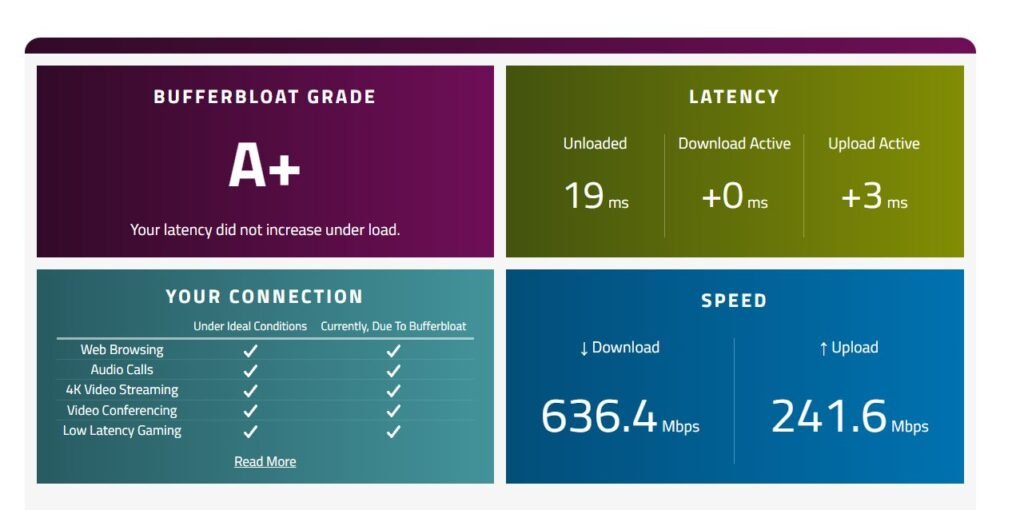
- Rerun Waveform’s Bufferbloat Test
Conclusion
By following these steps, you’ll achieve more consistent ping and better speeds, enhancing your gaming sessions. Remember that individual results may vary based on your specific network setup, but these optimizations are a great starting point.
Happy gaming! 🎮🚀