

If you’re an avid gamer, tweaking your NVIDIA Control Panel settings can significantly enhance your gaming experience. Whether you’re battling it out in competitive shooters or exploring vast open worlds, these settings can make a difference. Let’s dive into the key adjustments:
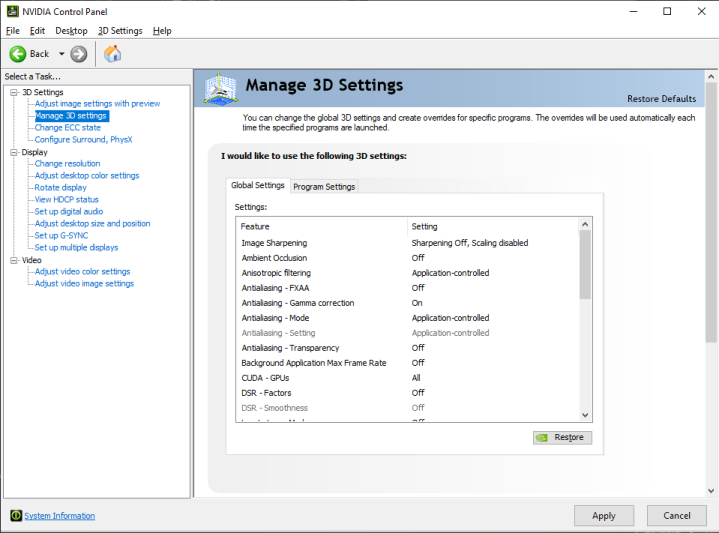
1. Image Sharpening
- Recommended Range: Adjust the Image Sharpening slider between 0.5 and 0.75.
- Ignore Film Grain: Keep it between 0 and 0.17 for optimal results.
- Our Preferred Settings: 0.75 for Image Sharpening and 0 for Ignore Film Grain.
- Important Note: If you modify these values, perform a clean installation (follow the DDU steps) to avoid issues.
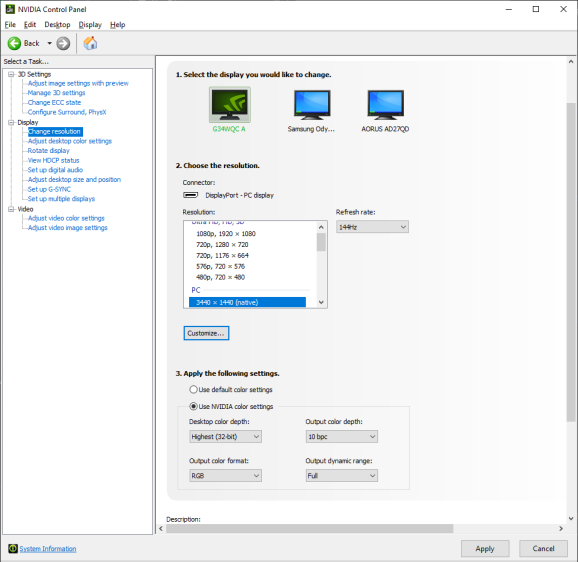
2. Monitor Settings
- Resolution: Select Resolution under the PC category that is labeled (native)
- Refresh Rate: Check that your Refresh rate is at your monitor’s maximum
- Color Settings: Use Highest whenever possible for color settings
- Note: UHD (4K) monitors at high refresh rate may enable Display Stream Compression (DSC) at 10 bpc. Test 8 vs 10 bpc.
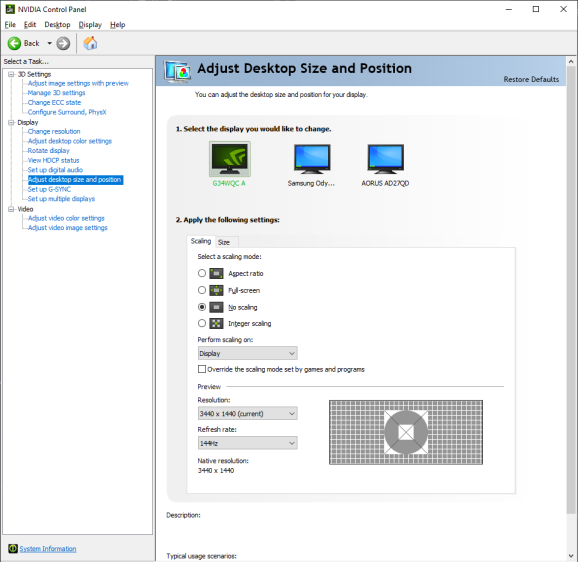
3. Scaling Options
- No Scaling: Use this if you play at your monitor’s native resolution.
- Override Scaling Mode: Set to “Perform scaling on Display.”
- Custom Resolution: If you play at a non-standard resolution, adjust scaling accordingly.
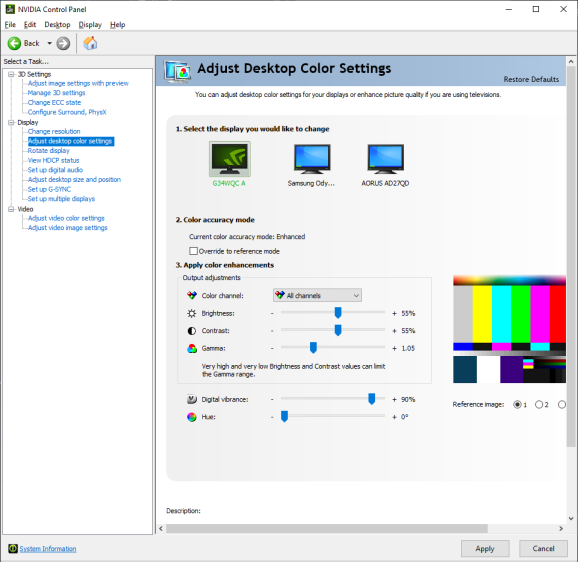
4. Color Settings
These are subjective and depend on personal preference and the capabilities of your monitor
Suggested Values:
- Brightness – 55
- Contrast – 55
- Gamma – 1.05
- Digital Vibrance – 90%
5. General NVCP Settings
Explore the general settings based on your preferences and hardware.
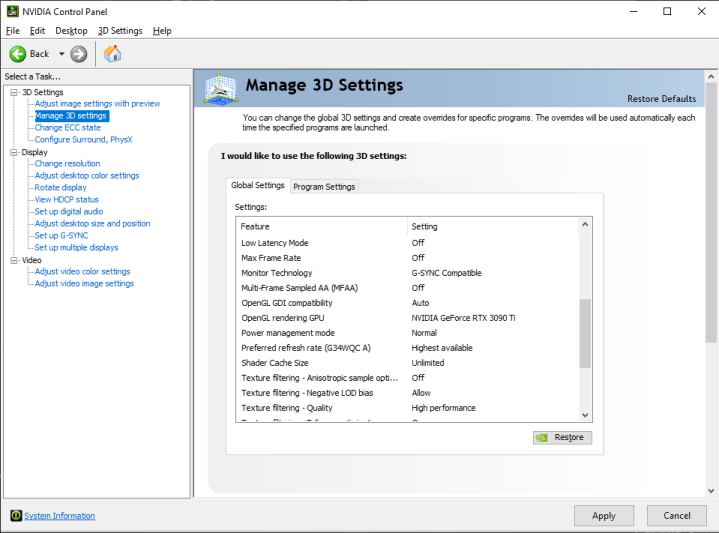
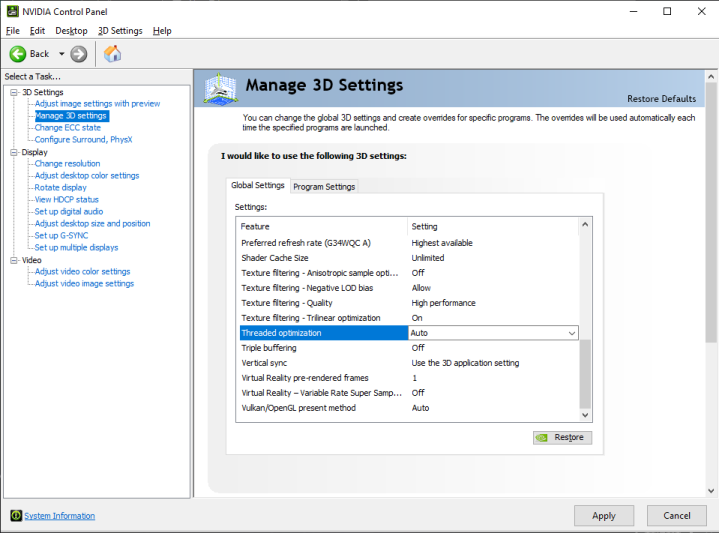
Remember, these settings are not set in stone. Experiment, find what works best for your system, and enjoy smoother gameplay! 🎮🔧